ESSENTIAL SKILLS
Quick Start Guide
Get your Essential Skills classroom set up and ready for students in just a few minutes.
STEP ONE
Login
Start by signing in to your Essential Skills administrator account.
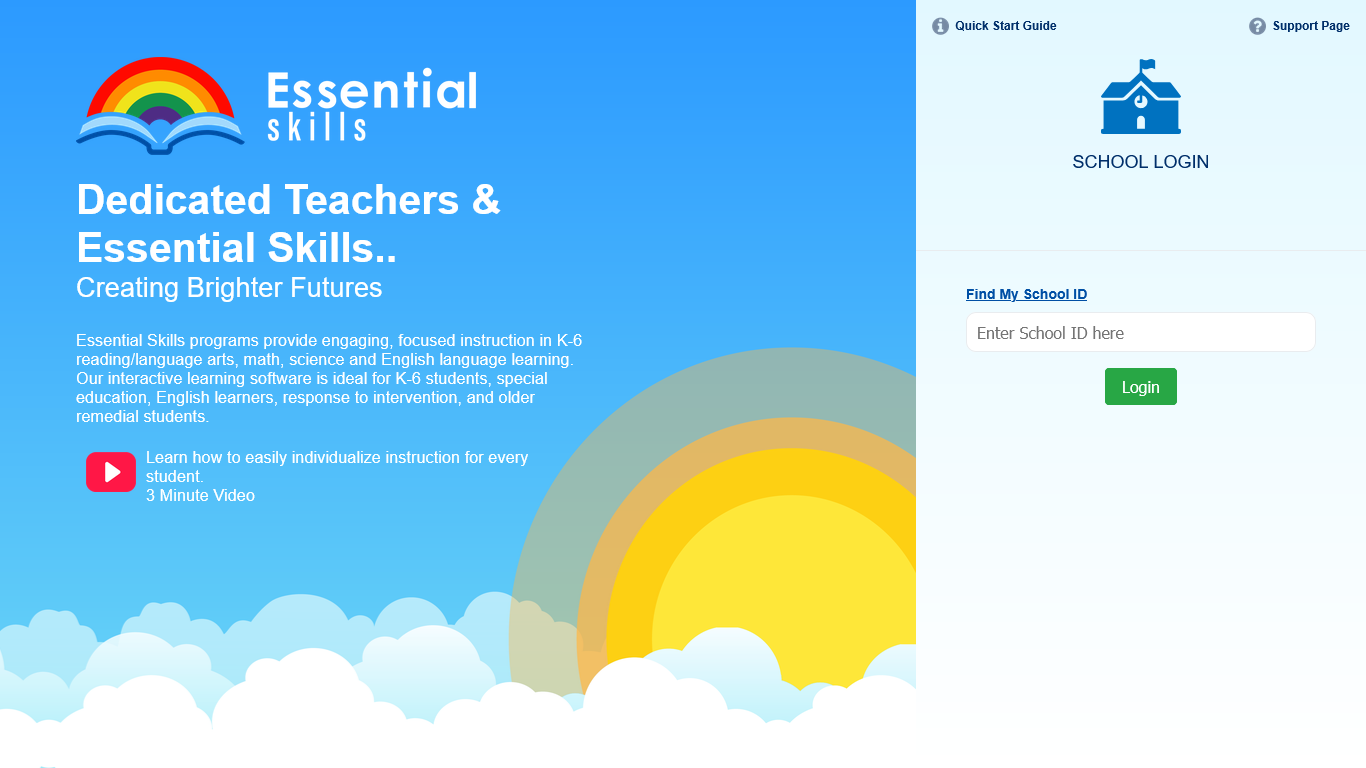
- Open the Essential Skills School Login page.
- Enter your School ID.
- Select Admin.
- Enter your administrator username and password.
- Click Login.
STEP TWO
Create Your Class
Create a class for the students who will be using Essential Skills.
- Open the class management area.
- Enter a name for your class.
- Choose the class username and password.
- Click Add Class.
Setting up several classes?You can import classes and students using a CSV file instead of entering everything individually.
STEP THREE
Add Your Students
Add students individually or add an entire class at once.
Add Students Individually
Use this option when you only need to add one or a few students.
Bulk Add Students
Use Bulk Add when setting up an entire classroom at once.
Using Bulk Add
- Enter or paste your student names.
- Select how you want usernames to be created.
- Select how you want passwords to be created.
- Review the information and add the students.
sign in to another student’s account.
STEP FOUR
Get Students Logged In
Your classroom is ready. Students can now sign in and begin working.
- Open the Essential Skills School Login page.
- Enter your School ID.
- Select Student.
- Choose the student’s class and name.
- Enter the student’s password if required.
Student Login screen
Make student login even easierYou can create a direct link to your class so students do not have to find their class each time.
NEED A HAND?
We’re Happy to Help
If you have questions while setting up your account,
contact Essential Skills Support.